Keep the basket connected.
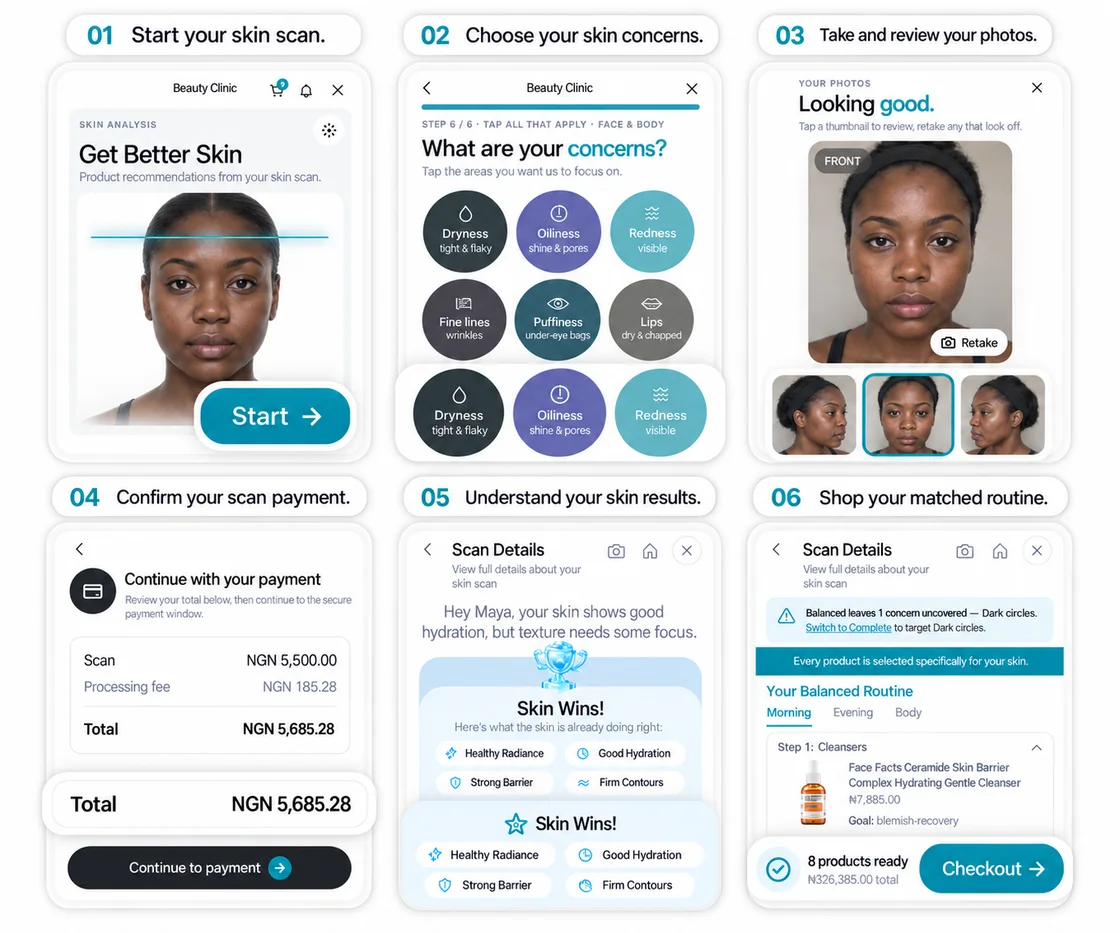
The customer moves from their product matches to a basket and payment in the same shopping flow.
Let customers pay for their matched products. Keep the transaction, balance and payout records together, so your team can follow the money after the sale.
Our payment partners
Talk to us about the provider connection for your business.
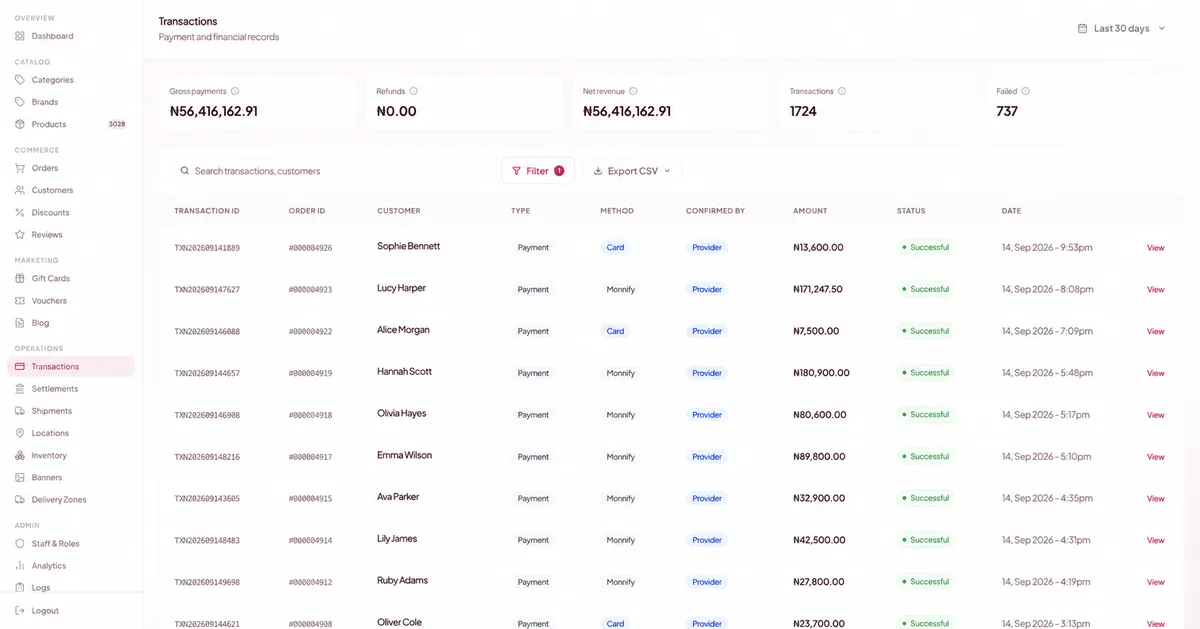
Search by transaction or customer. See the order reference, payment method, amount and status in the same row. Filter the records you need and export them for your team.
The customer moves from their product matches to a basket and payment in the same shopping flow.
Look up the payment status and the order it belongs to when a customer asks about a charge.
Use transaction references and CSV exports to review the payments behind your sales.
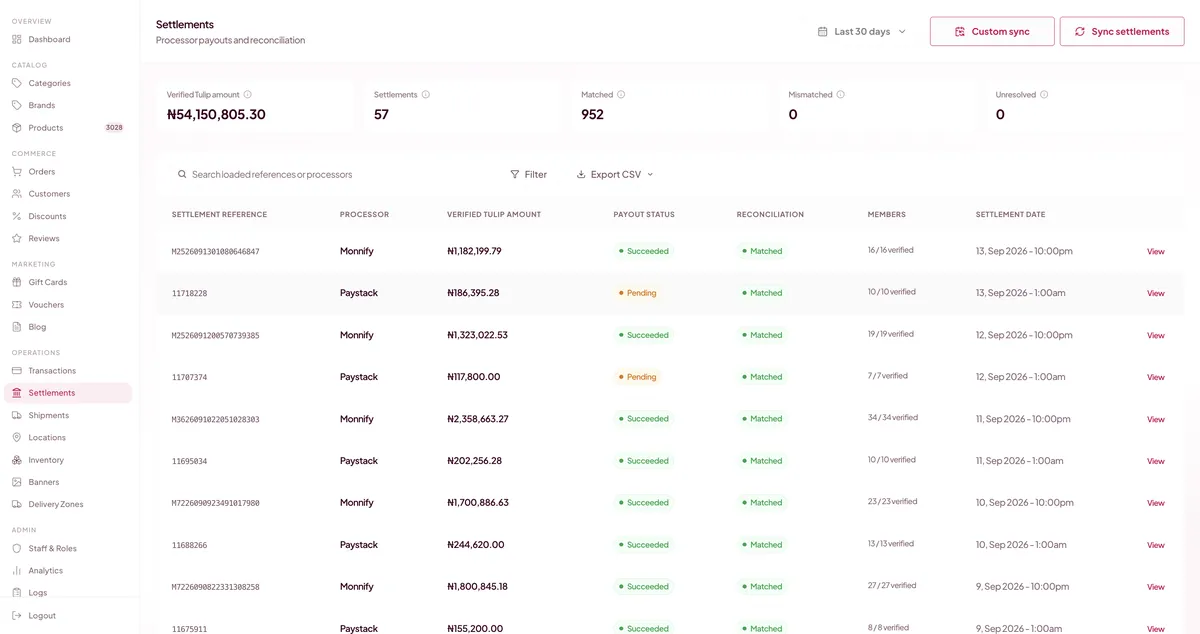
Review each processor payout, its reference and its settlement date. The settlement screen shows payout status alongside matched, mismatched and unresolved records.
Search a reference, filter the list or sync settlements when you need to check the latest record.
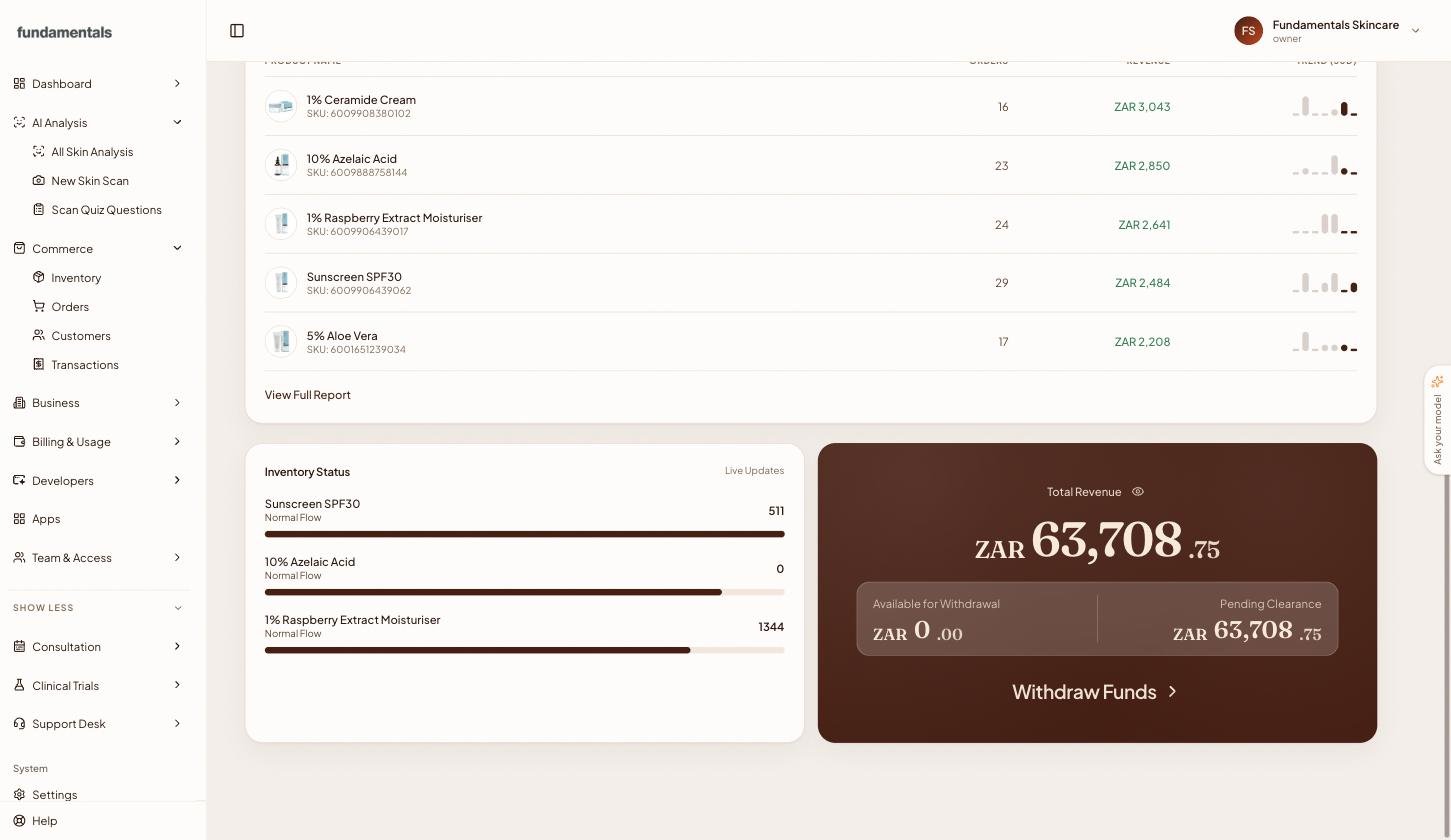
Your balance view separates available funds from money pending clearance. See the revenue total and open the withdrawal action from the dashboard.
Keep that view beside the products and orders behind it, with less switching between screens.
Customers review their skin results, see the products in their matched routine and continue to checkout. Your branding stays part of the experience.
The example shown includes payment for a scan as well as a product basket. We will walk through the setup that fits your store.
Oyster works with Paystack, Moniepoint and Stripe. Tell us where your business operates and which provider you use so we can review the right connection with you.
The transaction screen shows the payment and its order reference. The settlement screen shows processor payout references, payout status and matching results. Your team can use those records to investigate a payment or payout.
The balance panel separates available funds from funds pending clearance and includes a withdrawal action. Ask us to demonstrate the balance and payout flow for your account.
Contact us with your business location and provider. We will confirm the applicable fees and payout schedule for your setup.
Yes. Book a walkthrough and bring the checkout you use today. We will review the customer payment flow and the records your team needs after the sale.
See the customer checkout, then follow the transaction through the balance and settlement screens.